




Hey there! As an RJ45 connector supplier, I've seen my fair share of issues when it comes to these little guys in wireless networks. So, let's dive into how you can troubleshoot an RJ45 connector problem in a wireless network.


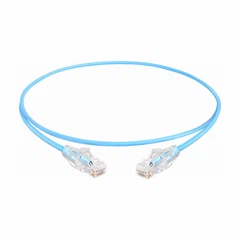
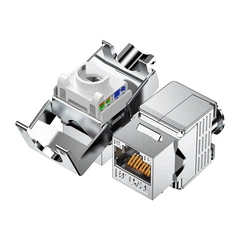
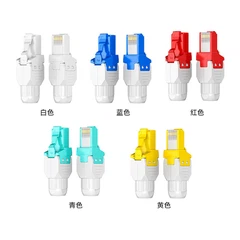
First off, let's understand what an RJ45 connector is. An RJ45 Connector is a standard connector for Ethernet cables. It's used to connect devices like computers, routers, and switches to a network. You've probably seen them – they look like big phone connectors, but they're designed for data transfer. And if you're dealing with a plug, there's the Modular RJ45 Plug, which is what you insert into the connector on your device.
Now, let's get into the troubleshooting process.
Physical Inspection
The first thing you gotta do is a good old physical inspection. Check the RJ45 connector itself. Look for any visible damage like bent pins, cracks in the plastic housing, or signs of corrosion. Bent pins can prevent a proper electrical connection, and corrosion can disrupt the signal. If you see any damage, you might need to replace the connector or the cable.
Next, take a look at the cable. Make sure it's not frayed or kinked. A damaged cable can also cause problems with the connection. Sometimes, the cable might have been pinched or stepped on, and that can mess up the internal wiring. If the cable looks bad, it's time to swap it out for a new one.
Also, check how the connector is plugged in. It should be firmly seated in the port. Sometimes, it might seem like it's plugged in, but it's actually loose. Give it a gentle wiggle and see if the connection improves. If it does, then it was probably just a loose connection.
Check the Device Ports
The problem might not be with the RJ45 connector or the cable at all. It could be the port on the device. Look at the port where the connector is plugged in. Is there any debris or dirt inside it? Sometimes, dust and lint can build up and prevent a proper connection. You can use a can of compressed air to blow out any debris.
Also, try plugging the cable into a different port on the same device if possible. If the connection works in the new port, then the original port might be damaged. And if you're using a router or a switch, try plugging the cable into a different device altogether. This can help you figure out if the problem is with the device or the cable.
Network Settings
If the physical inspection doesn't reveal any issues, it's time to look at the network settings. First, make sure that the device is set to use the correct network mode. For example, if you're using a wireless network, make sure the device is connected to the right Wi-Fi network.
You can also try restarting the device. Sometimes, a simple restart can fix a lot of network problems. Turn off the device, unplug it from the power source, wait for a few seconds, and then plug it back in and turn it on.
If you're still having problems, you might need to check the network adapter settings on your computer. Go to the network settings and look for the Ethernet adapter. Make sure it's enabled and that the settings are correct. You can also try updating the network adapter driver. Sometimes, an outdated driver can cause connection issues.
Testing the Cable
If you suspect that the cable might be the problem, you can test it. There are cable testers available that can tell you if the cable is working properly. You can buy a basic cable tester for a relatively low price.
To test the cable, plug the cable into the tester and follow the instructions. The tester will send a signal through the cable and check if it's received correctly at the other end. If the tester shows that there's a problem with the cable, then you know you need to replace it.
Signal Strength
In a wireless network, the signal strength can also affect the performance of the RJ45 connector. If the signal is weak, the connection might drop or be slow. You can use a Wi-Fi analyzer app on your phone or computer to check the signal strength.
If the signal is weak, try moving the device closer to the router. You can also try changing the channel on the router. Sometimes, other wireless devices in the area can interfere with the signal, and changing the channel can help reduce interference.
Professional Help
If you've tried all of these troubleshooting steps and you're still having problems, it might be time to call in a professional. A network technician can use more advanced equipment to diagnose the problem and fix it.
As a supplier of RJ45 connectors, I know how important it is to have a reliable network connection. If you're in the market for high-quality RJ45 Connectors or Modular RJ45 Plugs, we've got you covered. Our products are designed to provide a stable and fast connection, so you can keep your network running smoothly.
If you're interested in purchasing our products or have any questions, don't hesitate to reach out and start a conversation. We're here to help you find the best solutions for your network needs.
References
- Ethernet Networking Basics, Some Tech Journal
- Troubleshooting Guide for Network Cables, Network Mag
- Wi-Fi Signal Optimization, Wireless Tech Reviews